
Payments and refunds
This guide explains how payments and refunds work operationally in Periode. Use Reporting for report columns, exports, payouts, and reconciliation.
Payment lifecycle
What starts a payment
A payment starts when a customer completes a purchase flow, such as:
- Booking a session.
- Buying a membership.
- Buying a gift card.
- Buying a punch pass.
- Paying for a single payment product.
The product controls the price, VAT, payment methods, required customer details, refund rules, confirmation text, and any product-specific rules.
What Periode records
When the customer pays, Periode records the payment against the relevant customer and product.
Depending on the product type, the payment may create:
- A confirmed booking.
- An active or pending subscription.
- A gift card code or customer balance.
- A punch pass.
- A single payment record for an external system.
The payment then appears in payment views and reports.
Product settings decide the customer flow
Always check product settings when a payment result looks unexpected. Common causes are:
- VAT is set differently than expected.
- A discount code was applied.
- A member price was used.
- A gift card or punch pass covered the purchase.
- The product’s Refund type changes what happens on cancellation.
- A subscription has a discount, pause, or adjusted upcoming payment.
Payment methods
Enabled methods
The payment methods customers see depend on the merchant payment setup and the product configuration.
Before launch, check:
- Payment setup is active.
- The product has the intended payment methods.
- The price and VAT are correct.
- Receipts and customer emails are correct.
- The confirmation page or redirect behaves as expected.
Test the real flow
Do at least one customer-style checkout before sharing a public link. Testing only from the Backoffice does not prove that the customer payment, confirmation, email, and account result are correct.
For a new product, test:
- Purchase on desktop.
- Purchase on mobile.
- Confirmation page.
- Customer email.
- Customer account result.
- Report result.
Refunds
Where to refund
Every refund is made on the payment that paid for the thing, so the job is always to find that payment. Some products carry a shortcut straight to it, and for the rest you open it from the customer. This table is the full list of places a refund can be started.
| What was paid for | Where the refund action is |
|---|---|
| A booking | Open the booking from Booking and use the Manage tab: Cancel booking, Refund or Refund to gift card. See Refunding a booking. |
| A gift card | Gift cards > Payments. Search the gift card code or the buyer’s email, then See details on the row and Refund. |
| A gift subscription | Same place, Gift cards > Payments. You can also refund it from the row menu on Gift cards > Gift subscriptions. |
| A punch pass the customer bought | Punch passes > Punch passes. The row menu has Refund, which opens the payment behind the pass. Passes granted through a membership have no payment, so they have no refund action. |
| A membership charge or subscription | Open the subscription and use the Payments card, or the customer’s Payments card. See details on the row, then Refund. See Refunding a subscription. |
| Anything else, or you only know who paid | Search the customer in the top search, open their page and use the Payments card. Every payment the customer made is listed there, gift cards and API purchases included. |
Two things are worth knowing before you start:
- Who is allowed to refund. Admins always can. A booking master can only refund when Booking master can refund is on under
Settings > Company. - Why the refund button can be missing or greyed out. The payment is not finished or nothing was captured, the full amount is already refunded, a refund is already being processed, or the payment was taken with the old Vipps integration. A gift card issued manually has no payment behind it at all, so there is nothing to refund; change the balance instead, see Adjust customer balance.
Every refund form is a partial refund form. It shows what was already refunded and the maximum left, and you type the amount to send back, so you do not need a separate route for refunding part of a payment.
Refunding a booking
A booking is the one case with more than one refund action, because a booking can be paid for in several ways at once. All three sit in the Manage tab of the booking:
- Cancel booking releases the seat and refunds in the same step. You can give money back, give gift-card credit, and return the punches to a punch pass, in any combination, and choose whether the customer gets a confirmation email.
- Refund gives money back without cancelling. Use it for a price correction on a booking that still stands.
- Refund to gift card gives gift-card credit without cancelling. The maximum here is the price paid plus any gift-card balance the customer used on the booking, so it can be higher than the money that was charged.
Cancelling a session does not refund anyone by itself. See Cancel or close a session.
Refunding a subscription
A membership is paid one charge at a time, so you refund one charge, not the subscription. Refunding does not stop the subscription; the member keeps their access and the next charge runs as normal. Stop it separately if that is what the member wants, see Stopping a subscription.
-
Open the member’s subscription under
Subscription > Subscriptions. The Payments card lists every charge with its date, amount and status. -
Hover the charge to refund and click See details, the round info icon at the end of the row.
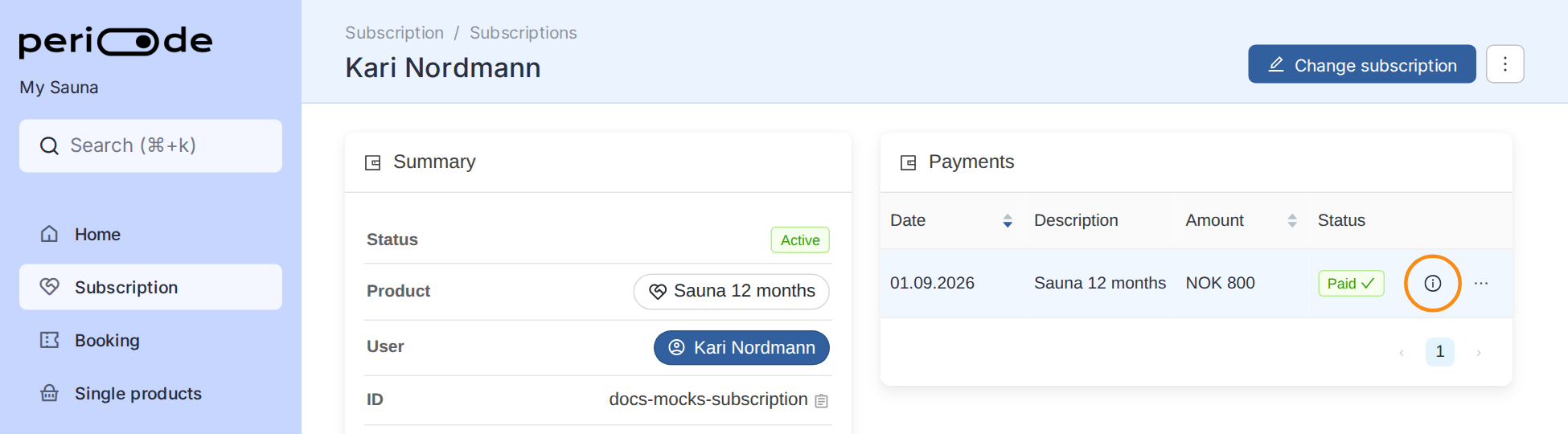
The subscription page. The Payments card lists the charges, and See details is the info icon at the end of a row; it appears when you hover the row. -
The Payment dialog opens with the charge’s status, provider, date and what has already been refunded. Click Refund at the bottom of it.
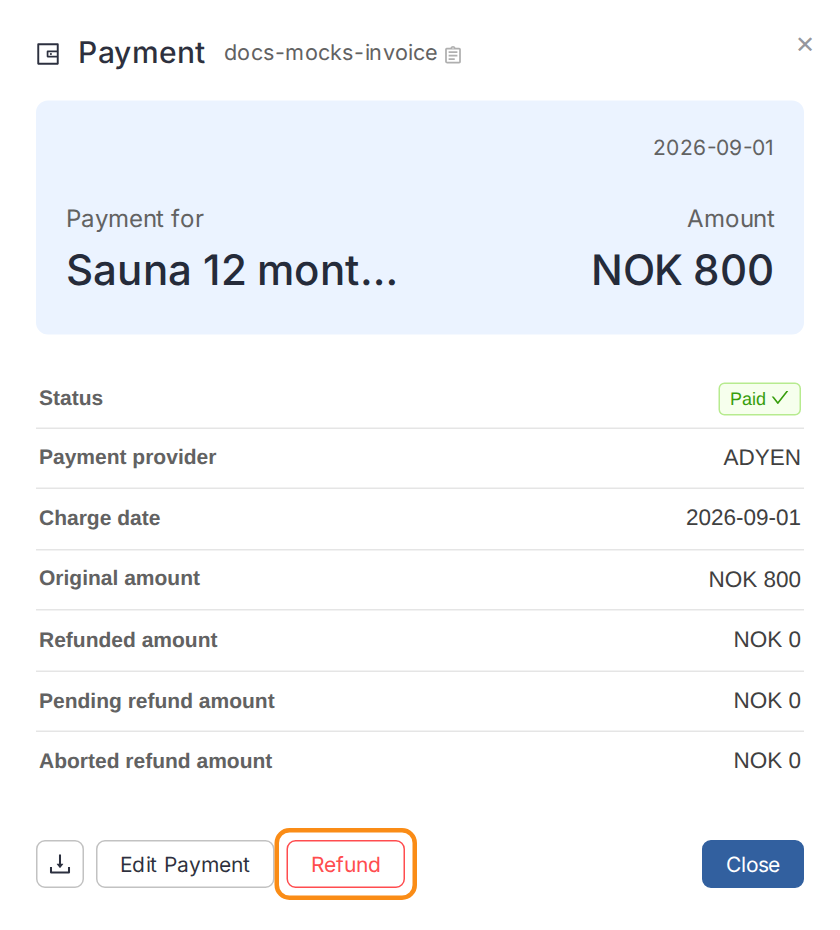
The Payment dialog. Refund is greyed out when there is nothing left to refund or a refund is already in progress; see the reasons under Where to refund. -
A refund form opens under the buttons and shows the maximum you can send back, which is the charge minus anything already refunded. Type the amount, a partial amount is fine, and click Refund in the form. The charge shows a pending refund until the payment provider confirms it, then Refunded or Partially refunded.
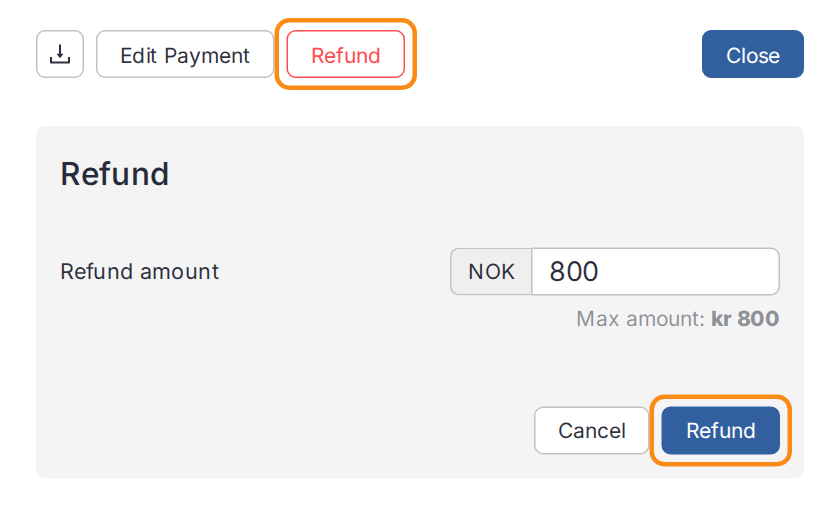
The refund form inside the dialog. Confirm with the second Refund button.
The same charge is also listed on the customer’s page, and refunding it there does exactly the same thing.
Product refund settings
Refund behaviour is controlled by product settings. For booking products, the Refund type controls what the customer receives when they cancel within the allowed cancellation window.
Depending on setup, a customer-side cancellation can result in:
- Money refund.
- Gift-card credit.
- Partial money and partial gift card refund.
- No automatic refund.
Admins can still decide what happens when handling a booking or cancellation manually from the Backoffice. The product setting controls the customer’s automatic cancellation behaviour.
Cancelling a booking
To cancel a single booking, open the booking itself and cancel it from there.
Before cancelling, check:
- Whether the cancellation deadline has passed.
- What Refund type the product uses.
- Whether the customer paid with money, gift card balance, punch pass, membership benefit, discount code, or another method.
- Whether you are cancelling one customer’s booking or an entire session.
If the customer cancels themselves, Periode follows the product settings. If an admin cancels, the admin chooses the outcome available in the Backoffice.
Refunding to money
Use a money refund when money should go back through the original payment flow.
Money refunds can take time to settle with the customer’s bank or payment method. Use Payment overview and reports to confirm that the refund was created.
A booking product can be set to hold back part of the amount when a cancellation is refunded as money. If a refund amount is lower than the original payment, check the product’s held-back amount for money refunds. It only applies when the Refund type is money.
Refunding to gift card balance
Use gift-card credit when the customer should receive credit to use later instead of a money refund.
Be careful not to refund twice. If you issue gift card credit manually, make sure the booking is not also cancelled with a money refund unless both actions are intended.
Gift-card refunds are cleanest before the card has been used. If a gift card has been partially redeemed, the remaining balance and original payment may no longer match one-to-one, so handle the refund with extra care.
Partial refunds
Use a partial refund when only part of the original payment should be returned, such as an extra add-on, a price difference, or a manual goodwill adjustment.
Record the reason clearly in your internal process so support and accounting can understand it later.
Failed payments
One-off payments
If a one-off purchase fails, the customer usually needs to try the checkout again. Ask the customer to confirm the payment method, authentication, and whether the payment was cancelled before completion.
Subscription payments
Recurring payments are retried automatically before the subscription is stopped. See Failed payments in Subscriptions and memberships for the retry schedule and what to check before handling a subscriber manually.
Customer communication
For payment problems, tell the customer exactly what they should do next:
- Try the purchase again.
- Update their payment method if the flow allows it.
- Log in with the correct account.
- Contact their bank or payment provider if the provider rejected the payment.
- Contact your team if the customer has paid but the product is not visible.