
Reporting
Reporting is where you review sales, refunds, bookings, gift cards, punch passes, subscription payments, and payout reconciliation.
Use Periode reports to understand what customers bought and how products performed. Use payment-provider reports to reconcile money movement to the bank account.
Watch Introduction to our Reporting functionality for a short walkthrough of the reports.
Choosing the right report
Monthly report
Use the monthly report for an aggregated accounting-ready view of a month. It is the best starting point for bookkeeping, VAT review, refunds, gift card liability, punch pass movement, and delivered versus sold activity.
Sales export
Use the sales export when you need transaction-level detail and want to filter, pivot, or reconcile by product, customer, date, payment method, discount, or refund.
Gift card report
Use the gift card report when you need to understand gift cards created, sold, redeemed, archived, still outstanding, or created as refund credit.
Booking statistics
Use booking statistics when you need booking volume, attendance, session performance, customer lists, waiver exports, or marketing lists.
Payment overview
Use payment overview for a current operational view of payments, pending payments, refunds, and subscription payment issues.
Provider reports
Use provider reports, such as Adyen or Vipps settlement reports where enabled, to reconcile payouts and settlement timing to the bank account.
Date concepts
Purchase date
Purchase date is when the customer paid or completed the purchase.
Use purchase date when reconciling sales activity or payment creation.
Completion date
Completion date is when the booked activity is delivered. For a booking, that is usually when the session starts. For purchases that do not have a future session, completion date may be the same as purchase date.
Use completion date when reviewing delivered activity for a period.
Why dates can differ
A booking can be paid in November and completed in January. A gift card can be bought in one month and redeemed later. A subscription payment can happen on a renewal date that is not connected to a booking date.
Always decide whether the question is about money collected, activity delivered, or money paid out to the bank.
Monthly report
What it is for
The monthly report gives an aggregated overview for a selected month. Use it for accounting handoff, internal review, and checking overall business activity.
It helps answer:
- How much was sold during the period?
- Which products generated sales?
- How much VAT was collected?
- Were refunds issued?
- What gift card or punch pass movements happened?
- What balances or liabilities remain?
Download it from Monthly report in the Reporting section of the Backoffice. Choose a month and download the report as an Excel workbook or a PDF.
What to review
Review the monthly report before sending numbers to accounting, especially if the month includes:
- Refunds.
- Manual changes.
- Gift card purchases or redemptions.
- User balance adjustments.
- Punch pass redemptions.
- Subscription corrections.
- Free bookings covered by memberships.
How the report is organized
The report has five sheets: Summary, Sales breakdown, Refunds, Gift Cards, and Punch Passes.
The reporting period runs from UTC midnight on the first of the month to UTC midnight on the first of the next month.
Summary sheet
The Summary sheet condenses the month into the sections below. Each section has Net / Tax / Gross columns and a Total row. Net and Tax are blank for items without a known tax rate; Gross is always populated.
Sales this month (cash basis)
What was actually sold this month, regardless of when the service is delivered. Grouped by Payment method × Type.
Refunds (cash out)
What was refunded this month. Grouped by Refunded to × Type.
Delivered this month (accrual basis)
What was actually delivered this month, regardless of when it was sold. Grouped by Type.
Gift card and user balance movements this month
Quick mental model: a gift card is a code with money on it. A user balance is money attached to a logged-in customer. When a customer redeems a gift card, the money moves from the gift card into their user balance. When the customer then buys something, the purchase is paid from the user balance, not directly from the gift card.
So gift cards and user balance are two pots of customer-owed money, with gift card → user balance → purchase as the normal flow. This section shows all changes to either pot during the month: gift card purchases, refunds, admin adjustments, user balance spent on purchases, and expirations.
End-of-month liability balances
The total amount still owed to customers at the end of the month — outstanding gift card balance, outstanding user balance, and prepaid bookings (paid this month but scheduled for delivery later).
These balances are different from money waiting to be paid out by a provider. They represent value customers may still use.
Sales breakdown sheet
A flat table of every sold or delivered event in the period, one row per combination of type, product, item, tax rate, and sold/delivered period.
To reconcile against the Summary sheet, start with the Sold column: rows marked This month are the sales counted in Sales this month (cash basis) for the selected period.
Columns
- Type — what kind of sale this is (subscription, booking, gift card, and so on). See Type values below.
- Product ID — the internal identifier of the product the sale belongs to.
- Product name — the human-readable name of the product.
- Item name — a finer breakdown within the product, where one exists. Blank otherwise.
- Tax% — the tax rate from the source document. Blank if unknown.
- Sold — when the order was created.
This monthif the sale was recorded this period,Prior monthsif recorded earlier. - Delivered — when the service is or was delivered.
This month,Future,Prior months, or blank for products with no delivery concept (gift cards and punch passes are recognized when used). - Quantity — number of source events grouped into the row.
- Net — pre-tax amount. Blank when tax is unknown.
- Tax — tax amount. Blank when tax is unknown.
- Gross — inclusive amount. Always populated.
Type values
- Subscription — covers regular subscription invoices, prepaid subscriptions, and subscription transitions.
- Subscription upgrades — single-payment upgrades attached to a subscription invoice.
- Booking — booking with valid receipt items.
- Booking (unknown VAT) — booking whose receipt items do not sum to the price; only the gross is trusted.
- Gift card — gift card purchase. No delivery row — it is recognized when the gift card is later used.
- Gift subscription — subscription gifted via checkout.
- Single payment product — one-time product purchase.
- Punch pass — punch pass purchase. Punch usage is tracked on the Punch Passes sheet.
- Generic purchase — free-form items added to a checkout.
Payment method
The standard payment methods (Stripe, Vipps, Adyen, Gift card) are self-explanatory. A few need explaining:
- Paid outside Periode — the sale did not go through one of the payment providers in Periode. Typically used for bookings paid by invoice handled outside the system, or bookings where the payment was marked as received externally.
- Free (Subscription) — the booking was free because it was covered by the customer’s subscription or membership, not because it was paid outside Periode.
- Missing payment reference — the sale exists but the payment method could not be determined. This is a data anomaly worth investigating; in normal operation it should never appear.
Refunds sheet
A flat table of all refunds in the period, one row per combination of refund target, product, and tax rate.
Columns
- Type — where the refund went. Refunded to Card/Bank means money was returned to the original payment method, such as a card or bank account. Refunded to Gift Card means the customer got a gift card with the refunded value instead of money back to their card.
- Product name — the product the refund relates to. May be a special label (
Single payment refund,Booking (unresolved),Unknown invoice,Other refund) when the source cannot be identified. - Tax% — the tax rate from the underlying source. Blank when unknown.
- Quantity — refund count in the group.
- Net / Tax / Gross — same as the Sales breakdown sheet.
Gift Cards sheet
Detailed gift card and user balance movements, with per-source breakdowns and end-of-month balances. More detail than the matching Summary section.
See Gift card and user balance movements this month for how the two pots relate (gift card → user balance → purchase).
Punch Passes sheet
Per-manifest punch counts: punches added through purchase, admin changes, or subscriptions, punches used, refunded, and expired, plus revenue from purchases.
Notes on accuracy
- Mismatched bookings. A booking whose receipt-item sum does not equal price plus gift card amount is shown as
Booking (unknown VAT). The gross is correct; tax and net cannot be derived. - Unresolved booking refunds. A refund whose underlying single-payment record points to a booking, but where the booking itself was not loaded, is shown as
Booking (unresolved). - Timezone effects. Bookings are bucketed by their actual UTC instant. A booking at
Feb 1 00:30Oslo time (Jan 31 23:30UTC) is counted in January.
Sales export
What it is for
The sales export lists purchases and refunds in more detail than the monthly summary. Use it when you need line-by-line analysis.
Download it from the CSV tab in the Reporting section of the Backoffice.
It is useful for:
- Accounting checks.
- Finding a specific sale.
- Comparing products.
- Reviewing discounts.
- Checking VAT.
- Investigating refund differences.
- Separating booking, subscription, gift card, punch pass, and extra-line activity.
Important columns
The sales export can include:
- Merchant ID.
- Order ID.
- Purchase date and time.
- Completion date and time.
- Order type.
- Product name.
- Customer name.
- Customer email.
- Amount.
- Currency.
- Payment type.
- Payment ID.
- Refunded amount.
- Gift card amount.
Depending on setup, extra booking questions can also appear as columns. This can be useful for marketing, segmentation, and operations.
Order types
Order types identify what kind of transaction the row represents.
Examples include:
- Booking payment.
- Subscription invoice.
- Gift card purchase.
- Gift subscription or gift code purchase.
- Extra line on an invoice or booking.
- Single payment product.
Extra lines can appear when a booking includes optional extras, such as equipment rental or another add-on.
Purchase versus completion filtering
Use purchase date when you want to know what was paid for in a period.
Use completion date when you want to know what was delivered in a period.
For example, a booking paid in December for a January session can belong to different views depending on the question.
Gift card report
What it shows
The gift card report shows gift cards created by the merchant and their context. It can include gift cards bought by customers, gift cards created manually by admins, and gift cards generated automatically as credit from a cancellation.
Download it from the CSV tab in the Reporting section of the Backoffice, together with the user balance and transaction exports.
Useful fields
The report can include:
- Merchant ID.
- Gift card code.
- Amount.
- Currency.
- Archived status.
- Source.
- Created date.
- Redeemed date.
- Product name.
- Internal message.
- Redeemed customer email.
- Payment type.
- Payment ID.
- Refunded amount.
Source
Source explains why the gift card exists.
Common sources:
- Customer purchase.
- Admin-created gift card.
- Automatically created refund credit.
Use source together with customer search when investigating support cases.
Booking statistics
What it is for
Booking statistics help you understand how bookings are performing. Open it from Booking statistics in the Reporting section of the Backoffice.
Use it to review:
- Number of bookings.
- Popular sessions.
- Capacity usage.
- Product or location performance.
- Cancellation patterns.
- Check-in or attendance patterns where used.
- Customer lists.
CSV export
Use the booking statistics export when you need raw rows for filtering or pivoting in Excel or another tool.
This can be useful for marketing lists, attendance follow-up, and customer segmentation.
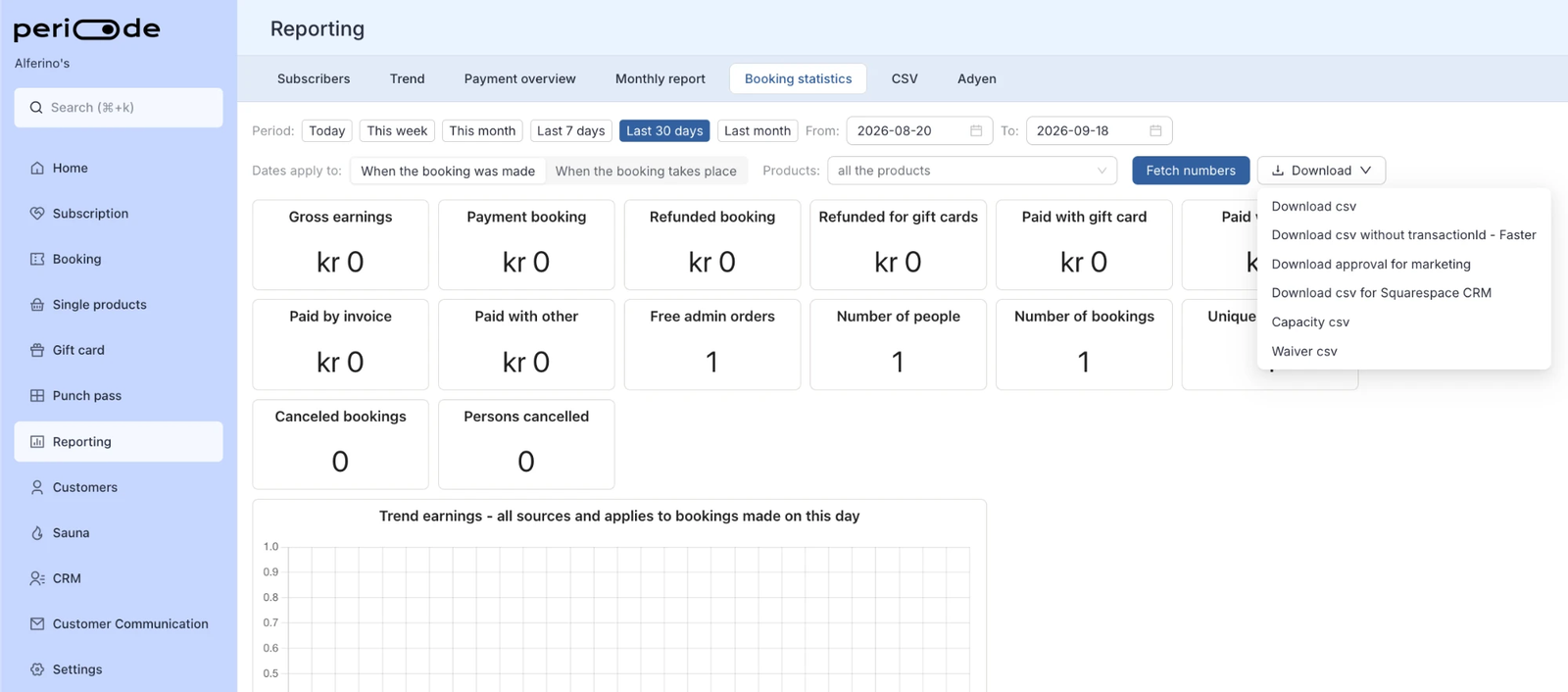
The Download dropdown offers these exports for the selected period and products:
- Download csv: one row per booking with all details, including the payment transaction ID. Includes gift card usage.
- Download csv without transactionId - Faster: the same booking rows without the transaction ID, which makes the export faster for large periods.
- Download approval for marketing: the email addresses of customers who gave marketing consent when booking, with the consent they gave.
- Download csv for Squarespace CRM: the booking rows in a format that can be imported directly into Squarespace CRM.
- Capacity csv: one row per session with capacity, reserved seats, cancellations and check-ins, for reviewing how full sessions were.
- Waiver csv: the waivers signed for bookings in the period, for operational review, safety follow-up, or compliance needs.
Payment overview
What it is for
Payment overview is the operational place to check payment status. Open it from Payment overview in the Reporting section of the Backoffice.
Use it to:
- Find payments by customer or product.
- Check failed or pending payments.
- Confirm whether a refund was created.
- Investigate subscription payment issues.
- Compare payment activity with provider-side reports.
Current-day numbers
Current-day payment views can be harder to reconcile than final reports because pending payments, refunds, and provider settlement can still be moving.
For precise accounting, use monthly reports, exports, and provider payout reports.
Provider reports and payouts
Payout reports
Provider payout reports explain what money was paid to the bank account and which transactions were included in that payout.
Use them when reconciling bank deposits.
Settlement reports
Provider settlement reports can include payment status, payout batch, fees, refunds, and transfer timing.
If using Vipps, use Vipps settlement reports for Vipps-specific reconciliation. If using Adyen, use Adyen reports for Adyen payouts and fee invoices.
What to compare
Reconciliation means comparing Periode’s operational records with the money paid out by the payment provider and received in the bank account.
Compare:
- Purchase date.
- Completion date for bookings.
- Product name.
- Customer.
- Gross amount.
- VAT.
- Refunds.
- Gift card or punch pass usage.
- Payment method.
- Provider payment ID.
- Payout or settlement date.
Why totals do not always match
Provider payout totals and Periode sales reports may differ because they answer different questions.
Common causes:
- Transaction time versus payout time.
- Purchase date versus completion date.
- Refunds in another period.
- Provider fees.
- Settlement cutoffs.
- Gift card or punch pass redemptions.
- Timezone differences.
To reconcile, choose one transaction or payout and trace it across Periode and the provider report.
Reports that require exports
Some reporting questions require exports and manual filtering rather than a prebuilt dashboard.
Examples:
- Payout-based sales views.
- Automatic daily sales email.
- Franchise fee breakdowns.
- Customer frequency breakdowns.
When a report does not exist as a single click, use the sales export, booking statistics export, monthly report, and provider reports together.