
Start here
Periode helps you sell and manage bookings, memberships, punch passes, gift cards, and other customer payments from one Backoffice. This guide gives the shared concepts used across the rest of the documentation.
How Periode is organized
Backoffice
The Backoffice is where your team configures products, manages customers, handles bookings, reviews payments, downloads reports, and changes settings.
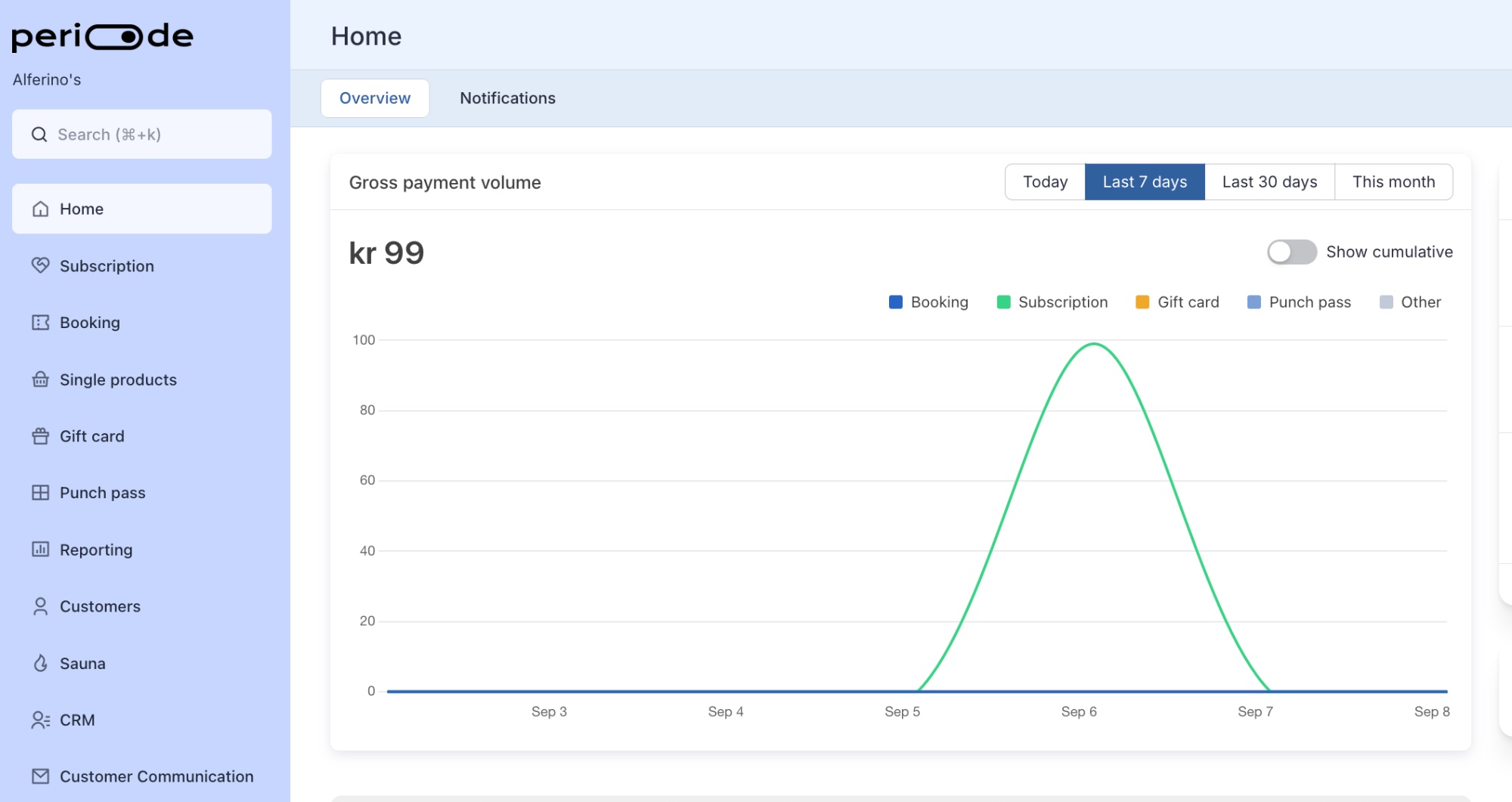
Use the Backoffice when you need to:
- Create or edit a product.
- Change a booking schedule.
- Add a walk-in or front-of-house booking.
- Check customers in.
- Pause, stop, or adjust a membership.
- Issue or adjust a gift card.
- Download reports.
- Change branding, access, payment, or account settings.
Customer pages
Customer pages are the public or customer-facing pages where customers book, buy, pay, redeem, and manage their account.
Customers use these pages to:
- Book a session.
- Buy a membership.
- Buy or redeem a gift card.
- Buy or redeem a punch pass.
- See upcoming bookings.
- Complete a waiver.
- Find their confirmation and access details.
- Manage subscriptions where customer-side actions are enabled.
Products
A product is something you sell or give access to. Products define the rules customers see and the rules Periode applies.
The main product types are:
- Booking products, for sessions, rooms, saunas, classes, facilities, courses, events, and rentals.
- Subscriptions and memberships, for recurring customer access or recurring payments.
- Punch passes, for a fixed number of sessions or visits.
- Gift cards, for money balance that customers can use later.
- Single payment products, for one-off payments handled through the API or a simple purchase flow.
Customers
Customers are the people who book, buy, pay, redeem, or hold access in Periode. A customer account is connected to the email and login method the customer used.
When a customer cannot see a membership, gift card, punch pass, discount, or booking, first check whether they are logged in with the same account used for the purchase.
Sessions
A session is a specific date and time generated from a booking product. A booking product is the template; sessions are the actual calendar slots customers book.
Change the product when you want to change the normal rules. Change a live session when you only want to adjust one date or one slot.
Payments and reports
Periode records the operational side of payments: what was bought, which customer bought it, which product it belongs to, and whether it was refunded.
Payment providers handle the bank movement, settlement, payout timing, and provider-side reports. Use Periode reports for sales and product activity. Use provider reports to reconcile payouts to the bank account. See Reporting.
Launch checklist
1. Set up the account
Before sharing customer links, check the account foundation:
- Organization name and contact details are correct.
- Terms and conditions links are present.
- Admin users have the right roles.
- Restricted booking staff only have access to the products they should manage.
- Payment setup is active.
- Branding is applied and previewed.
2. Set up the products
For each product, review:
- Customer-facing name.
- Description and instructions.
- Price and VAT.
- Payment and refund settings.
- Required customer information.
- Terms or waiver requirements.
- Confirmation text and emails.
- Product-specific links, QR codes, or redirects.
For booking products, also review:
- Schedule.
- Duration and interval.
- Capacity.
- Booking window.
- Cancellation deadline.
- Member prices.
- Discount codes.
- Optional extras.
- Door code or access setup.
For subscriptions, also review:
- Billing interval.
- Fixed payment dates if used.
- Member benefits.
- Discounts.
- Gift subscription settings.
- Commitment period if used.
- Subscriber limit or waitlist if used.
3. Test as a customer
Always test the real customer flow before launch.
Use test purchases to confirm:
- The customer can open the link.
- The page looks correct on mobile.
- The customer can complete checkout.
- Discounts, gift cards, memberships, or punch passes apply as expected.
- The confirmation page is clear.
- Emails are received.
- The booking, subscription, gift card, or punch pass appears on the customer account.
- Reports show the purchase in the expected place.
4. Test as staff
Before staff use the system live, test the daily admin workflows:
- Find a customer from the top-left search.
- Open the booking calendar.
- Add a walk-in booking.
- Search for an existing customer while adding a booking.
- Create a new customer while adding a booking.
- Check a customer in.
- Cancel a booking and choose the payment outcome.
- Find a customer’s booking link or access code.
- Download a report.