
Subscriptions and memberships
Subscriptions and memberships are recurring products. Use them when a customer should pay on a repeated schedule for access, membership benefits, recurring services, or discounted booking access.
“Subscription” and “membership” describe the same product type in Periode. Use the word that fits your business in customer-facing text, and use it consistently.
Subscription concepts
Subscription product
The subscription product is what customers buy. It contains the name, price, billing interval, payment settings, customer information fields, terms, benefits, and advanced behaviour.
Examples:
- Monthly sauna membership.
- Annual club membership.
- Weekly training plan.
- Recurring access pass.
- Membership with discounted booking prices.
- Membership that grants included punch-pass sessions.
Subscriber
A subscriber is a customer who has purchased a subscription product. The customer’s subscription record is connected to their customer account.
From the subscriber view, admins can review customer details, subscription status, payments, upcoming billing, discounts, and available subscription actions.
Billing interval
The billing interval controls how often the customer is charged, such as weekly, monthly, or yearly.
Choose the interval carefully when creating the product. Depending on setup, changing the billing interval later may require creating a new subscription product.
Subscription statuses
Subscription and payment statuses help you understand what is happening with a customer’s membership.
Common statuses include:
- Active, when the subscription is running.
- Pending, when the subscription has been created but is not fully active yet.
- Due, when a payment is due or waiting.
- Paid, when a payment has completed.
- Stopped, when the subscription has been stopped.
- Expired, when the subscription has ended.
- Refunded, when a payment has been refunded.
- Partially refunded, when part of a payment has been refunded.
Create a subscription product
Product details
Create subscriptions from Subscription > Products.
Start with:
- Name.
- Short description.
- Body text.
- Price.
- VAT.
- Payment interval.
- Payment methods.
- Receipt setting.
- Required customer information.
- Terms and conditions link.
Use customer-friendly names. “Monthly Membership” is usually easier to understand than an internal product name.
Customer information
Choose which details the customer must enter during signup, such as name, email, phone, and address.
Only request information you need for access, communication, legal requirements, accounting, or delivery of the membership.
Terms and conditions
Add a link to the membership terms and require acceptance when customers must agree before purchase.
Use the terms and product description to explain:
- Recurring price.
- Billing interval.
- Cancellation rules.
- Commitment period if used.
- What the membership includes.
- What member benefits require.
Quantity selection
Enable quantity selection only if it makes sense for the membership. Many memberships are personal and should usually be limited to one per customer.
Advanced subscription settings
Images and presentation
Use product images, background images, body text, completion text, and completion redirects to make the signup flow clear.
Completion text is useful for a short message after purchase. A redirect URL is useful when customers should be sent to another page after signup.
Starting price (campaign price)
A starting price sets the amount charged at the start of the subscription, replacing the normal price for the first period. Leave it blank to charge the normal price from the start. It is configured under Edit > Advanced > Campaign on the subscription product.
Use a higher starting price for a signup, onboarding, or joining fee. Use a lower starting price for a temporary introductory offer, such as a reduced price before the normal price begins.
By default the normal price resumes at the next ordinary due date. To hold the starting price for longer — for example a fixed introductory period like the first few months — set when the second charge should happen, either as a number of days after signup or on a specific date. From the second charge onward, the customer pays the normal price on the normal interval.
Example — four months at a reduced price, then normal. Set the starting price to your campaign amount, then set the second charge to happen a number of days after signup. For a four-month offer that is roughly 120 days.
The day count is not aligned to the billing cycle — it counts calendar days from signup, and does not currently snap to a specific number of payments. Set it slightly longer than the intended period to be safe, for example 125 days rather than exactly 120, so the normal price does not begin a little too early. If you need the offer to line up with an exact number of payments instead, use a discount code with a number-of-payments duration.
For an introductory price the customer claims with a code instead, or one that should cover a set number of payments, see Discount codes.
Prepayment
Prepayment lets a customer pay for the whole period up front in a single payment instead of being charged automatically every interval. The customer chooses how long the membership should last, pays the full amount at signup, and the membership then ends on its own when the prepaid periods run out — there is nothing to renew or cancel.
It is configured under Edit > Advanced > Prepayment on the subscription product.
To set it up:
- Turn on Prepayment. This makes prepayment available on the product.
- Optionally tick only allow prepayment, no recurring billing to remove the ordinary recurring option entirely, so every customer prepays.
- Optionally set a fixed number of prepaid intervals to lock the length. Leave it blank to let each customer choose how many periods to buy at signup.
When the length is not fixed, the customer picks the number of periods during signup — up to 12 for monthly memberships, or 1 for yearly.
Interval count
Interval count controls how many billing intervals pass between charges.
For example, a monthly subscription with interval count 3 charges every three months.
Fixed payment date
A fixed payment date lets subscriptions renew on a specific day of the month. Use this when all members should renew on the same monthly date.
Avoid dates that do not exist in every month.
Fixed payment month
For yearly subscriptions, a fixed payment month can be used when annual renewals should happen in a specific month.
This is useful for seasonal memberships, school-year memberships, or annual club cycles.
Subscriber limit and waitlist
Use a maximum subscriber limit when the membership has limited capacity.
If demand should be collected after the product is full, enable the waitlist where available. Use waitlists when you want to manage interest without tracking people manually outside Periode.
Webhooks
Use subscription webhooks when subscription activity should notify another system, such as access control, analytics, or membership administration.
See Webhooks for developer setup.
New member notifications to staff
To be alerted whenever someone starts a membership, enable Send email to the company when a new customer starts a subscription in the product’s E-post section. A “Nytt medlem” email is then sent each time this membership is started.
Two things must be in place for the alert to arrive:
- The setting above is enabled on the membership product. It is per product, so turn it on for each membership you want alerts for.
- A Company email is set under Settings > Company. That is the address the notification is sent to.
Booking products have their own notification address instead (a merchant email field on the product), so enabling it for a membership does not cover bookings, and the reverse.
Options and add-ons
Extra options
Extra options let customers add something during signup. An option can have a positive price, no price, or a negative price.
Use options for add-ons, preferences, equipment, extra services, or agreed adjustments.
Radio options
Radio options let customers choose one option from a set.
Use them when the customer must choose one membership variant, access level, or preference during signup.
Member benefits
Member prices and included sessions
Member benefits on bookings are configured on the booking products, not on the subscription. A discounted or free member price is a price tier on the booking product connected to the membership. See Member prices.
A fixed number of included sessions per period is handled by connecting a punch pass to the membership. The subscription controls recurring payment, and the punch pass controls the included uses. See Granting punch passes through memberships.
Member-only access
Memberships can also represent access rights.
Examples:
- Member-only booking products.
- Member-only sessions.
- Discounted booking products.
- Included sessions through punch passes.
- Facility access connected to active membership.
Explain the benefit clearly in the product description so customers understand what they are buying.
Subscription discounts
Where discounts are managed
Subscription discounts are managed on the subscription details page. They apply to that subscription only.
Use subscription discounts when a specific subscriber should receive a reduced recurring price.
When adding the discount, define:
- When it starts.
- How long it lasts.
- What type of discount it gives.
Discount start
The start controls when the discount begins affecting the subscription.
Use this when a discount should begin immediately, from the next renewal, or from a specific point in the subscription lifecycle.
Discount duration
The duration controls how long the discount remains active. Depending on the available setup, the discount may last for a limited number of payments, a defined period, or another configured duration.
Discount type
The discount type controls how the subscription price is reduced.
Examples:
- Percentage discount.
- Fixed amount discount.
- Full discount.
Use a full discount when a subscription should be free for the selected duration.
Discount codes
Discount codes are set up per subscription product, separately from the manual per-subscriber discount above. They let a customer claim a reduction themselves by entering a code at signup, which is useful for campaigns, partner offers, or a temporary introductory price.
Manage them on the product’s detail page, in the Discount codes card. For each code, set:
- The code itself.
- The valid from–to dates when the code can be used.
- Duration: how long the discount then lasts on the subscription — either until a specific date, or for a set number of payments.
- What it applies to: the base product only, or the whole purchase including extras.
- Reduction: a percentage or a fixed amount.
Creating a code automatically enables the discount-code field at signup for that product. Set the duration to a number of payments when an offer should cover a fixed number of charges — for example, a reduced price for the first few payments before the normal price applies. This is the code-based alternative to a built-in starting price.
Note the difference between the two dates: the valid from–to dates are the window in which a customer can claim the code, while the duration is how long the reduced price then lasts on their subscription. A customer who claims the code inside the window keeps the reduced price for the whole duration, even after the code has closed to new customers.
Example: lock in a rate for a limited time
Say a membership is normally $260 a month, and you want to let people lock in $240 a month for a year, but only if they join within the next 7 days. Create a discount code with:
- Reduction: a fixed amount, $20 off, which brings $260 down to $240. A percentage works too, but a fixed amount keeps the price at a round number.
- Valid from–to: today through 7 days from now. This is the claim window; once it closes, no new signup gets the price.
- Duration: a set number of payments, 12. The $240 rate holds for the first 12 monthly charges, then the subscription returns to $260.
- Applies to: the base product, so the reduction is on the membership price itself.
Everyone who claims the code inside the 7-day window keeps $240 for the full 12 payments, regardless of when the window closes.
You can download a code’s usage as CSV from the code’s edit dialog. If a code is not working, see Discount code does not work.
Gift subscriptions
Enable gift purchase
Gift purchase is enabled per subscription product:
- Open the product from
Subscription > Products. - Go to Edit, then the Advanced tab.
- Open the Gift section.
- Tick The product can be bought as a gift for others.
- Optionally add a gift description. It replaces the product description on the buy-as-gift page.
- Save.
A product with a connected punch pass cannot also be sold as a gift.
Gift purchase flow
A subscription or membership can be sold as a gift when gift purchase is enabled.
The buyer chooses how long the subscription should last and pays the full amount up front. The buyer then receives an email with a unique code to pass on to the recipient. When the recipient activates the code, the gift subscription is connected to their own customer account and becomes active.
When to use gift subscriptions
Use gift subscriptions when the gift should be tied to a specific subscription or membership product.
Use regular gift cards when the recipient should choose what to spend the value on. Note that gift card balance can currently only be redeemed on bookings, so a gift card cannot be used to pay for a subscription.
Managing subscribers
Finding a subscriber
Admins can find subscribers from the subscription product, subscriber list, or top-left customer search.
Search by email when possible. Email is usually the safest way to identify the correct customer when several customers have similar names.
Exporting the subscriber list
To download your members as a spreadsheet, for a newsletter or any other contact list, open the Subscription > Subscribers list and use the Export as .csv button below the table. The export dialog lets you narrow the list before you download it:
- Only active: include only members whose subscription is currently active. Turn this on for a newsletter so stopped members are left out.
- Only suspended: include only paused members.
- Selected products: limit the export to one or more membership products. Leave it empty to include every product.
The file has one row per subscriber with their name, email, phone number, address, status, amount, next charge date, and product, so it imports straight into a newsletter or mailing tool.
The subscriber export does not have a marketing-consent column. It is the list of people who hold a membership, not a record of who agreed to receive marketing. For a list filtered to the customers who ticked a marketing consent when booking, use Download approval for marketing instead.
Subscriber details
Open a subscriber to review:
- Customer details.
- Subscription status.
- Payment history.
- Upcoming payments.
- Discounts.
- Active benefits.
- Subscription actions.
Editing customer information
Admins can update details such as name, email, phone, and address when needed.
Be careful with email changes. Email is often connected to login, purchase history, member benefits, and customer communication. Editing the email does not move the subscription to another customer account. To do that, use Changing ownership.
Changing ownership
You can move a subscription to another customer account, for example when the subscriber no longer has access to the email account they signed up with.
- Open the subscriber’s subscription page. Search by email when possible.
- Click the … icon at the top right of the subscription page.
- Choose Change owner.
- Enter the new email address. You can also set how long the activation link stays valid (72 hours by default) and add a message that is included in the email.
- Save. Periode sends an activation email to the new address.
- The new owner opens the link in the email, logs in to the customer portal, and clicks Activate the membership. They should log in with the account that will own the subscription going forward.
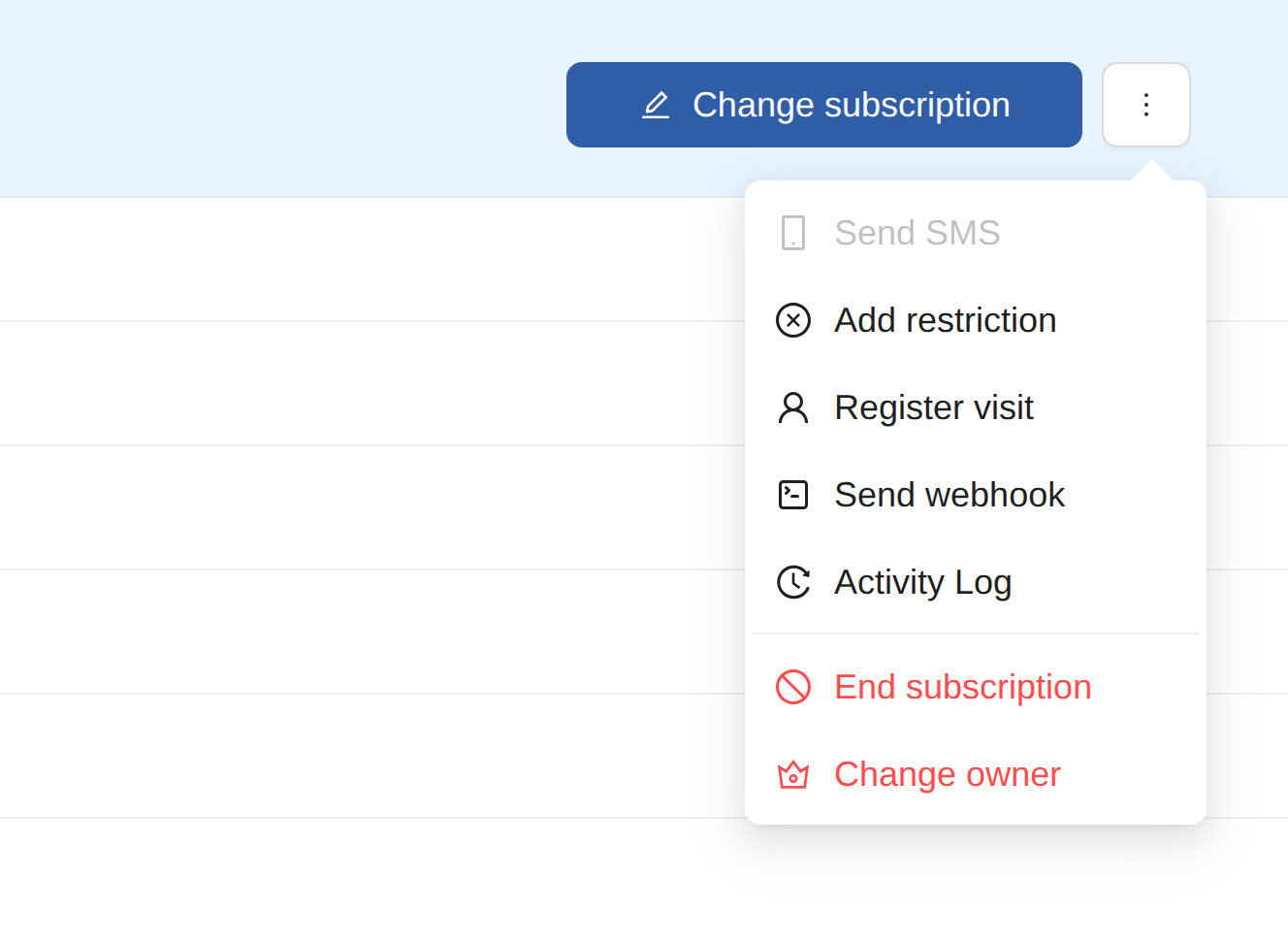
Until the new owner activates, the subscription stays with the current owner. If the link expires before it is used, repeat the steps to send a new one. Once activated, the subscription email is updated to the new address and the previous owner no longer sees the subscription in their account.
Refunding subscription payments
Refund subscription payments from the relevant payment or subscriber view. The steps are in Refunding a subscription.
Before refunding, check:
- Which payment is being refunded.
- Whether the subscription should remain active.
- Whether member benefits should continue.
- Whether the refund should be partial or full.
Pausing, stopping, and changing subscriptions
Pausing a subscription
Pause or suspend a subscription when the customer should keep the subscription record but should not be charged for a period.
Use this for temporary absence, illness, agreed pauses, or special handling.
While paused, member benefits may be unavailable depending on setup. Check the customer’s subscription before promising access during a pause.
Resuming a subscription
Pauses may need to be removed manually. If you pause a subscription, create an internal reminder to resume it or use an upcoming payment adjustment when that is the cleaner workflow.
Moving an upcoming payment
For some pause-like situations, moving the upcoming payment can be simpler than suspending the subscription. Open the customer’s subscription, select the upcoming payment, and change the date to the agreed restart date where available.
Use this when the subscription should continue but the next charge should happen later.
Stopping a subscription
Stopping a subscription ends the recurring membership.
Use this when the customer cancels, should no longer be billed, or should no longer receive benefits.
Before stopping, check:
- Upcoming payments.
- Paid period.
- Active benefits.
- Included punch passes.
- Commitment period.
- Refund expectations.
End date
When ending a membership, choose whether it should end immediately or at a later date where the product allows it. This lets a customer keep access until the end of an already paid period when appropriate.
Plan transitions
The Transition setting can let customers move from one membership to another from their account page.
Add the transition on the source membership. For example, add a transition to “Regulars Club” if those members should be able to move to “Full Membership”.
Transition is for changing plan without cancelling and signing up again. It may depend on the current subscription being active and paid.
Billing and renewals
Next charge date
The next charge date depends on the product’s billing setup, fixed payment settings, and customer subscription history.
If a next charge date looks wrong, open the customer’s subscription record and review how the cycle is configured before assuming it is an error.
Failed payments
Subscription payments are processed on the due date. If the first attempt fails, the customer is notified by email, and Vipps sends its own notification for Vipps payments. Periode retries the payment over the following days. If it still fails after three days, the subscription is stopped. A customer whose subscription has been stopped must start a new subscription if they still want to be a member.
If a recurring payment fails, review the subscription and customer account before changing anything manually.
Check:
- Customer account.
- Subscription status.
- Payment status.
- Upcoming payment.
- Customer email and login method.
- Any provider-side payment information available.
Use the subscription status and payment history to decide the next step. The customer may need to retry payment, update payment details, or contact the business for manual handling depending on what the payment history shows.
Receipts
If receipt sending is enabled, customers receive receipts for subscription payments.
Use receipt settings consistently with your accounting and customer communication process.
Commitment periods
What a commitment period does
A commitment period prevents customers from freely cancelling during a defined period.
Use commitment periods when the membership requires a minimum term, such as a 6-month or 12-month agreement.
Customer communication
Make the commitment period clear in the product description and terms before customers purchase.
Customers should understand:
- How long they are committing for.
- When they can cancel.
- What payment obligations continue during the period.
- What happens after the commitment period ends.
Refer a friend
Refer a friend lets existing subscribers invite others. When a new member signs up with a referring member’s code, both sides can receive a discount. Use this for launch promotions, community growth, and rewarding loyal members.
Set up Refer a friend
Refer a friend is configured per subscription product, not centrally:
- Open the product from
Subscription > Products. - Go to Edit, then the Advanced tab, and open the Refer a friend section.
- Switch on the Turn on Refer a friend toggle.
- Under Friend referral discount, set the discount For the new customer and For the existing customer (the one who shared the code) separately. For each one, choose:
- Discount type: a percentage or a fixed amount.
- Amount.
- What it applies to: the base product only, or the base product and extras.
- In the same product, also enable The product supports discount codes (also on the Advanced tab). This is what gives new members a field to enter the referral code during signup. Without it there is nowhere to type the code, so the code cannot be redeemed.
- Save.
The product’s Advanced > Refer a friend section is the only place Refer a friend is set up. There is no separate campaign area.
How members share and redeem
Once Refer a friend is turned on for the product, each active subscriber sees a Refer a friend box on their own subscription page in the customer portal. It shows the discount both sides receive and a personal referral code they can copy and share.
The new member enters that code in the discount or referral code field during signup, and their discount is applied to the purchase immediately.
Each member has one personal code, and it never runs out. They can share it with as many people as they like, and every new member who signs up with it gives the referrer a new reward. The code only works while the referrer’s own subscription is active.
When each discount applies
Both rewards are one-time, not permanent recurring discounts:
- The new member receives their discount on the first payment only.
- The referrer receives their discount automatically on their next payment only, once the new member’s subscription becomes active. The referrer’s own subscription must still be active for the reward to be granted.
If a member should keep a reduced price on every renewal, use a subscription discount on that individual subscription instead of a referral reward.
Several referrals before the next payment
Rewards are not spread over the following payments. Every referral that becomes active before the referrer’s next payment adds its reward to that same payment, so the rewards stack:
- Fixed amount: the amounts add up. Five referrals at 100 kr give 500 kr off the next payment. The price never goes below zero, and any reward left over is not carried forward.
- Percentage: each reward is applied to the price left after the previous one. Two referrals at 50% give 75% off, not 100%.
For example, if the referrer pays on the 1st of every month, all friends who sign up during March give their rewards on the 1 April payment. A friend who signs up in April gives their reward on the 1 May payment.
See who has used a referral code
Referrals are shown on each subscription, in the Discounts card on the subscription details page. Both sides get a Friend referral discount, with a link to the other subscription:
- On the new customer’s subscription: Friend referral discount · Referred by a friend, where a friend links to the subscription of the one who shared the code.
- On the existing customer’s subscription: one Friend referral discount · Referred a friend for each friend who signed up, where a friend links to that friend’s subscription, with the date it expires after being used on the next payment.
There is no separate report that lists all referrals across customers. To check whether someone has brought anyone in, open their subscription and look for friend referral discounts.
Reporting on subscriptions
Use Reporting to follow subscription performance: active members, growth and stops, expected recurring revenue, and payments that need attention. Payment overview shows subscription payment issues, and the monthly report and sales export include subscription invoices.
Use reports together with subscriber search when investigating individual customer cases.