
Punch passes
A punch pass is a fixed number of prepaid sessions or visits. The customer buys or receives a bundle, and each eligible booking spends one use until the pass runs out.
Use punch passes when access should be counted by quantity. Use gift cards when access should be stored as money value.
Punch pass concepts
What a punch pass is
A punch pass can represent:
- 10 sauna visits.
- 5 classes.
- A fixed number of guest sessions.
- Included monthly member sessions.
- A campaign bundle.
The pass controls how many uses the customer has. The booking product controls which sessions can accept the pass.
Punch pass versus membership
A membership renews on a recurring payment schedule. A punch pass counts uses.
They can work together. For example, a monthly membership can grant a punch pass with a fixed number of sessions each period.
Create a punch pass product
Basic setup
Create a punch pass product when customers should be able to buy a fixed number of sessions.
Review:
- Product name.
- Customer-facing description.
- Number of uses.
- Price.
- VAT.
- Expiry.
- Eligible booking products.
- Personal or non-personal behaviour.
Use clear names such as “10 visits”, “5 classes”, or “Monthly guest pass” so customers understand what they are buying.
Price
Set the price based on the value of the included sessions. If the punch pass should be sold at a discount, explain the offer in the product description.
Renaming punches
If your business does not use the word “punch”, use customer-facing wording that matches your product, such as clips, visits, passes, classes, or sessions.
Expiry
Expiry date or period
Use expiry when the pass should only be valid for a limited time.
Make the expiry clear in the product description and customer communication so customers know when the pass must be used.
Support cases
If a customer says a pass disappeared or cannot be used, check whether it expired before adjusting anything manually.
Granting punch passes through memberships
A membership can include a fixed number of sessions per period, for example “4 sauna visits a month”. You set this up by linking a punch pass product to the membership. Periode then gives every member a punch pass on their first payment and refills it on every following payment. The member uses the pass at booking exactly like a bought punch pass.
Use this when members should get a limited number of included sessions. If members should book without limit at a lower price, use a member price on the booking product instead. See Member prices.
Set it up step by step
-
Create the punch pass product
Under
Punch pass > Products- Give it the name members will see, for example "Member sessions".
- Under Products, add every booking product the pass can be used on and how many punches one booking costs.
- Set Expires after in days. The clock restarts on every membership payment.
- Switch on The Punch pass is personal so the pass can only be used by the member.
-
Open the membership product
Under
Subscription > Products- Open the membership and choose Edit product.
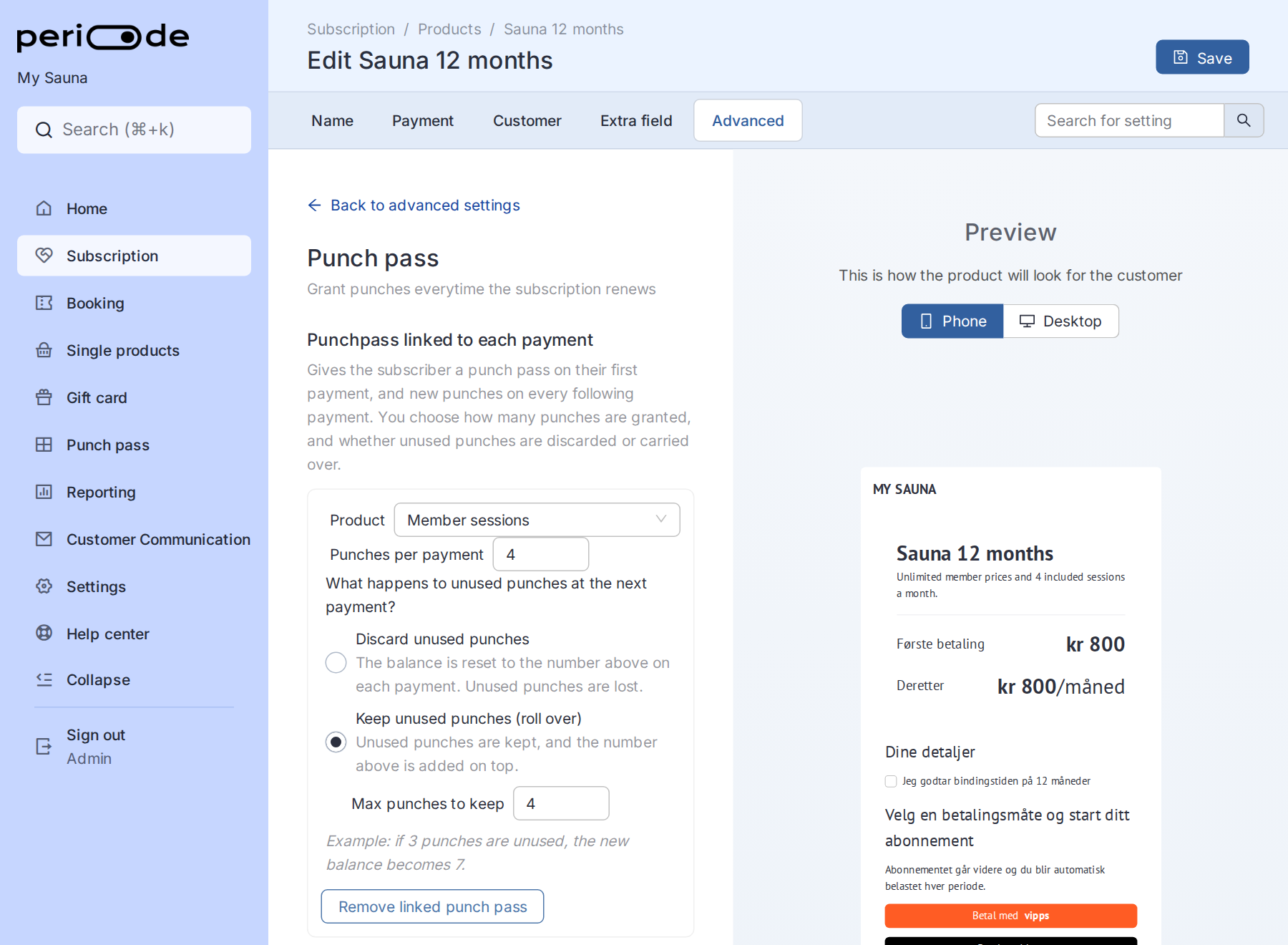
- Go to the Advanced tab and open the Punch pass card.
- Click Add linked punch pass.
-
Choose product, amount and refill rule
In the Punchpass linked to each payment card
- Product: the punch pass product from step 1.
- Punches per payment: how many punches each payment grants.
- What happens to unused punches at the next payment: discard them, or keep them with an optional Max punches to keep.
- Save the product.
-
Check a member
Under
Subscription > Subscriptions- Open the member's subscription. The Punch pass row shows the pass code with the remaining punches out of the punches per payment, and opens the pass for editing.
- New members get the pass on their first payment. Existing members get it on their next payment, or right away with Add Punch pass on the same page.
- Under
Punch pass > Punch passesa pass granted by a payment shows Source "subscription".
Discard or keep unused punches
The refill rule decides what the balance becomes at each payment. All three examples use 4 punches per payment and a member with 3 unused punches:
| Rule | New balance after payment |
|---|---|
| Discard unused punches | 4. The balance is reset to 4 no matter how many were left. |
| Keep unused punches, no maximum | 7. The 3 unused punches are kept and 4 are added on top. |
| Keep unused punches, Max punches to keep set to 2 | 6. Only 2 of the unused punches are kept, then 4 are added on top. |
Use Discard for “use it or lose it” memberships. Use Keep with a maximum when members may save up sessions, but not without limit.
When punches are granted
- First payment: the member gets a new punch pass on their account with the punches for the first period.
- Every following successful payment: the same pass is refilled according to the rule above, and its expiry is moved forward by the product’s Expires after days.
- A period with nothing to charge, such as a free period or a 100% discount, counts as a payment and still grants the punches.
- Failed payment: nothing is granted until the payment succeeds, and a subscription stopped for non-payment gets no more punches. The exception is a membership with Support membership switched on under Advanced > Settings on the product: it stays active on a failed payment and still grants the punches for that period. See Failed payments.
- Next payment moved to a later date: no punches are granted until that payment runs. See Moving an upcoming payment.
- Stopped subscription: the pass is not removed. The member can use the remaining punches until the pass expires.
Changing the linked product, the number of punches or the refill rule takes effect at each member’s next payment. Removing the link stops future grants, but passes already granted stay usable until they expire.
Write the rule in the membership description so members know how many sessions are included, whether unused sessions carry over, and when the pass expires.
If a member says their punches are missing
- Open the member’s subscription under
Subscription > Subscriptions. The Punch pass row shows whether they have a pass and how many punches are left. Confirm they are logged in with the account that owns the pass. See Login methods and customer identity for how to check which account a customer is using. - Check the pass is not expired and that the booking product is listed under Products on the punch pass product.
- Check on the same page that the member’s last payment succeeded. Punches are only granted when a payment succeeds or a period has nothing to charge.
- If the balance is wrong, adjust it from the Punch pass row. See Editing remaining sessions.
Personal and non-personal passes
Personal passes
A personal pass is tied to the customer account at purchase or grant time.
Use personal passes when the benefit should belong to one person and should not be shared.
Non-personal passes
A non-personal pass can be shared by code depending on setup.
Use non-personal passes when the pass is intentionally giftable or shared, but explain the behaviour clearly so the buyer understands how the code works.
Redeeming and using a pass
Redeeming to an account
When a customer redeems a pass, it becomes available according to the product setup. If the pass is personal, ownership was already set when the pass was purchased or granted; the personal restriction is enforced when the customer books with the pass.
If the pass is on the wrong customer account, search for the customer accounts involved and handle the correction according to your internal process.
Booking with a pass
When a customer books an eligible session, the pass can be used as payment or access for that booking.
After the booking is completed, the remaining number of uses is reduced.
If the pass does not appear at booking, see Punch pass is missing or not working.
Managing punch passes
Looking up a pass
Search for the customer from the top-left Backoffice search and open the customer account overview.
Use this to review available passes, remaining uses, expiry, and customer support context.
Editing remaining sessions
Admins may need to adjust remaining uses when a pass was applied incorrectly, a customer support case requires correction, or a manual agreement was made.
Make adjustments carefully and record the reason in your internal process.
Refunds
Refund a punch pass the customer bought from the row menu on Punch passes > Punch passes, which opens the payment behind the pass. A pass granted through a membership has no payment of its own, so it has no refund action. See Where to refund for the other refund entry points.
Before refunding, check:
- Whether the pass has been used.
- How many uses remain.
- Whether access should stop.
- Whether the customer also has related bookings.
- How the refund should appear in reporting.
Archiving or expiring a pass
Archive or let a pass expire when it should no longer be usable.
Use this for expired passes, incorrect passes, or passes that were replaced through support.